
Effects · VST3 / AU
YLA-2A ex
Optical compressor. Switch between the U and W voicings with one click.
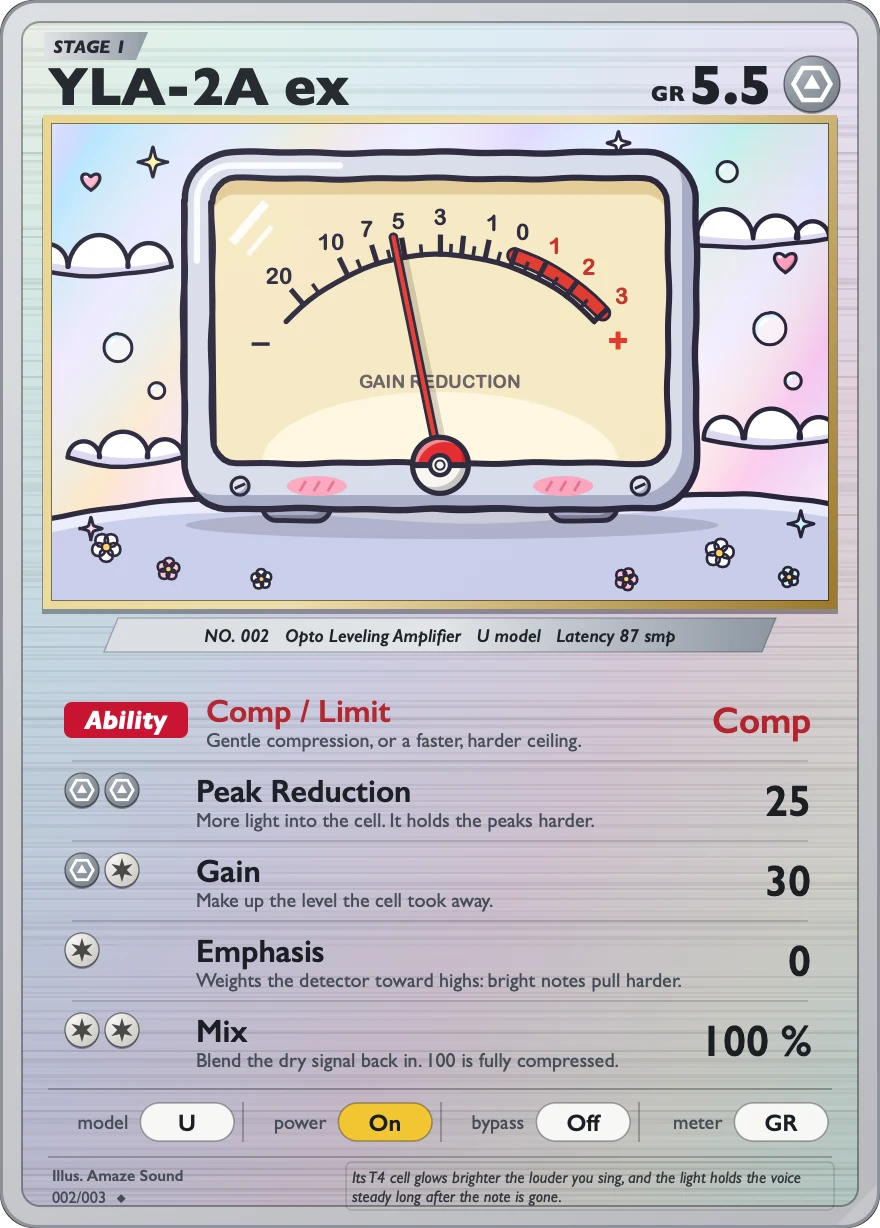
Optical compression is gentle going in and slow to let go, so it holds a sound steady. The sound of YLA-2A ex was rebuilt from scratch, and the model button at the bottom of the card switches between the U and W voicings. It works at any sample rate, and turning Mix down gives you parallel compression.
VST3 / AU · macOS 11 or later · Apple silicon and Intel · 14.4 MB
Controls
The card has a Comp / Limit switch, four knobs and a row of four buttons along the bottom. U and W have different default knob positions, so both are listed below.
-
Voicingmodel
Pick U or W, default U. Each mode remembers its own knob positions: set up U, switch to W and back, and U is still the way you left it. The first time you use a mode, its knobs are at the default positions. The remembered positions are saved with your session. Switching fades over 20 ms, so there are no pops.
-
ModeComp / Limit
Two positions: Comp is fairly gentle. Limit is faster and harder, like a limiter. Default is Comp.
-
AmountPeak Reduction
How much to compress. The further right, the harder it compresses. 0 to 100 (the ends read Min and Max), no unit. Default is 25 in U mode and 46 in W mode.
-
MakeupGain
Brings back the level lost to compression. 0 to 100 (the ends read Min and Max), no unit. Default is 30 in U mode and 40 in W mode.
-
High-frequency detectionEmphasis
Turn it up and bright sounds (sibilance, cymbals, treble) get compressed more. In W mode it reads Hi Freq. 0 to 100. Default is 0 in U mode and 50 in W mode.
-
Dry/wet mixMix
At 100% you hear only the compressed sound. Turn it down to blend the dry signal back in for parallel compression. 0 to 100%, default 100%.
-
Powerpower
Off / On, default On. When off, audio passes through unchanged (with a fade), and latency stays the same.
-
Bypassbypass
Off / On, default Off. When on, the plugin is bypassed and latency stays the same. Your DAW's bypass button controls this too.
-
Metermeter
+10 / GR / +4. Changes only what the meter shows, not the sound. GR shows how much gain is being reduced, +10 and +4 show output level (two different meter references). Default is GR.
Specs
v0.2.1
- Format
- VST3 and AU effect plugin, 64-bit
- System
- macOS 11 or later
- Processor
- Apple silicon and Intel (Universal)
- Sample rate
- Any
- Channels
- Mono or stereo
- Latency
- 87 samples at 44.1 and 48 kHz (about 1.8 ms at 48 kHz), 119 at 88.2 and 96 kHz, 152 at 192 kHz. The same for U and W. Reported to your DAW, which compensates for it automatically.
- Install location
- VST3:
/Library/Audio/Plug-Ins/VST3/YLA-2A ex.vst3
AU:/Library/Audio/Plug-Ins/Components/YLA-2A ex.component - Name in your DAW
- Manufacturer AmazeSound, plugin YLA-2A ex
- Not in this version
- AAX, standalone app and Windows version
- Installer
- .zip archive with an installer (.pkg) and a Read Me.txt in Chinese and English
Have YLA-2A Silver, SilverOptoMould or CYA-2A Silver installed? YLA-2A ex is a new plugin. It doesn't conflict with them, so you can have them installed at the same time. We suggest removing the old ones so your plugin list doesn't get confusing. Old plugins used in old sessions won't be switched to ex automatically.
Can't find it in your DAW after installing? Rescan VST3 or AU plugins in your DAW.
Download YLA-2A ex v0.2.1
Quit any open DAWs first. Double-click the .zip to unzip it, then double-click the installer (.pkg) inside and follow the prompts. You can install VST3, AU or both, and you'll be asked for your Mac's login password. If you have 0.2.0, just install. It upgrades over the old version. When it's done, reopen your DAW or rescan plugins.